How to set up a ticket bot on Discord
A ticket bot gives every member who needs help a private channel with your support team, so requests stop getting lost in DMs and busy chats. This guide sets one up with TicketFast, a free Discord ticket bot you configure from a web dashboard. It takes about five minutes.
Updated
What you need
- A Discord server where you have the Manage Server permission, which Discord asks for when you add a bot.
- A channel for the panel that members can see, such as #support.
Step 1: Add TicketFast to your server
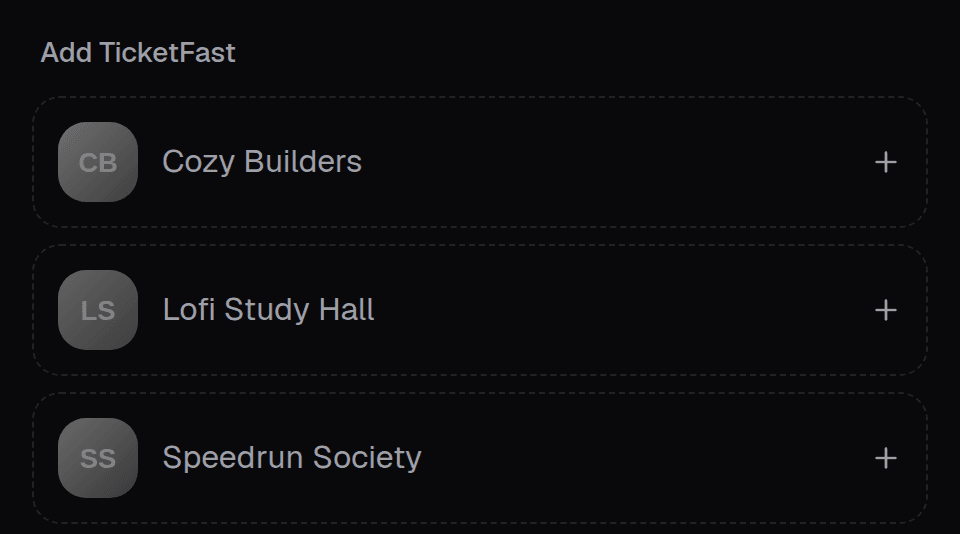
Sign in to the TicketFast dashboard with your Discord account. Servers that don't have TicketFast yet are listed under Add TicketFast: pick yours and approve the permissions Discord shows. You can also start from the Add to Discord link.
TicketFast creates a private channel for every ticket, so it needs to manage channels and their permissions.
Step 2: Create a ticket panel
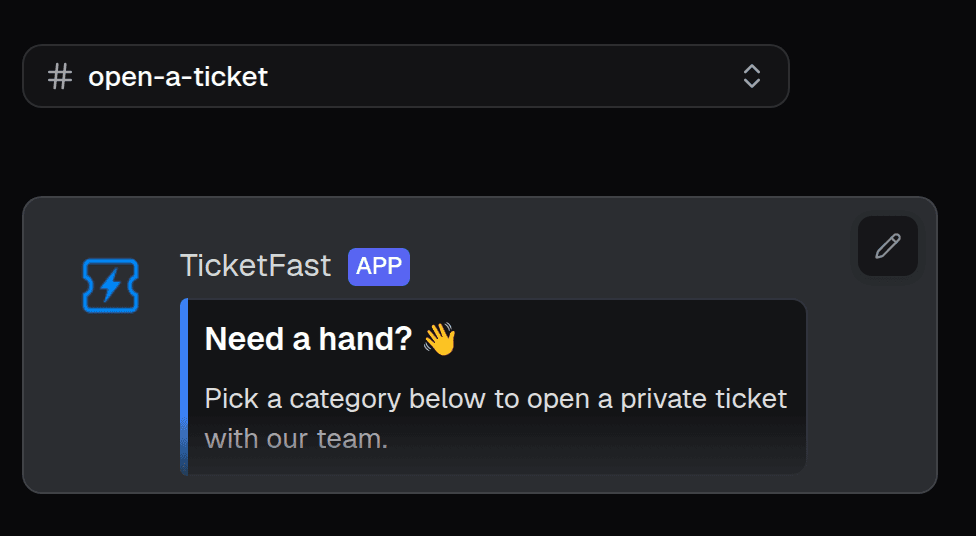
Pick your server in the dashboard and open Tickets. Create a panel, give it a name and choose the channel members should open tickets from. TicketFast posts the panel message in that channel. Change its text and embed in the editor, with a live preview of how it will look in Discord.
A setup guide in the bottom-right corner of the dashboard ticks off these steps as you go.
Step 3: Add categories
Categories are the kinds of tickets members can open, such as Support, Billing or Partnerships. Give each one a name, an emoji and a short description. They show up in the panel's menu, up to 25 per panel.


Step 4: Choose your support team
Open a category and pick its Support team roles. People with those roles can see and answer the category's tickets; until you pick one, only server admins can. Each category can have its own team, so billing questions only reach the people who handle billing.
Step 5: Open a test ticket
Ask someone without a staff role to open a ticket from the panel, or use a second account. TicketFast creates a private channel, such as #ticket-12, that only they and the support team can see, and posts the category's opening message. Reply as staff, then close the ticket with its Close button or /close.
Make it fit your server
Every category has more settings in the dashboard. None of them are required, and all of them are free. The documentation covers each one in detail.
- Forms ask questions before a ticket opens, with text fields, dropdowns, checkboxes and file uploads. The answers are posted in the ticket, so staff start with the details.
- Opening hours set your team's hours and time zone. When a member writes outside them, TicketFast posts a message with your hours.
- Transcripts save an HTML copy of the conversation when a ticket closes or is deleted, post it in a transcript channel and can send the member a copy in their DMs.
- Auto close and auto delete close tickets once the member goes quiet after a staff reply, and delete closed tickets after a set time.
- Unanswered indicator colors the channel name by how long the ticket has waited for staff, from green to red.
- Response reminder DMs the member when staff have replied and they haven't answered yet.
- Channel names follow a template, such as
ticket-{increment}, and can change when a ticket closes.
Handle tickets in Discord
Staff answer in the ticket channels themselves. These commands work inside a ticket:
| Command | What it does |
|---|---|
/close | Closes the ticket, with an optional reason |
/open | Reopens a closed ticket |
/add | Adds someone to the ticket |
/remove | Removes someone from the ticket |
/transcript | Saves a transcript of the ticket |
/recategorize | Moves the ticket to another category |
/autoclose | Turns auto close on or off for the ticket |
/ai | Has the AI write a reply (Premium) |
In the dashboard, Needs Reply lists every ticket still waiting on staff, oldest first.
Let AI answer the easy ones
With Premium, TicketFast answers tickets from your docs and website, and calls in your staff when it can't help. Read how the AI support bot works.
If something doesn't work
- The panel didn't show up. Make sure TicketFast can see and send messages in the panel's channel.
- Staff can't see tickets. Add their role to the category's Support team.
- Ticket channels end up in the wrong place. Pick the Discord categories for open and closed tickets in the category's settings.